
Lenzora Cloud Photo & ERP
ERP Case Study
Lenzora Cloud Photo & ERP, in One System
A complete admin panel for photography events — events, galleries, QR codes, collaborators, plans, payments and support, all in one place.
Event ManagementPhoto GalleriesQR Sharing
Photo EventsINDUSTRY
Face SearchGUEST EXPERIENCE
QR per EventEASY SHARING
Role-basedADMIN ACCESS
Demo video coming soon
ERP Working Video
See the Lenzora Cloud Photo & ERP in Action
A guided tour of the working system. Screens show sample data.
- Photo Events
- Face Search
- QR per Event
- Role-based
Modules
Modules & How They Work
Tap a module to see its working step by step. Click a screen to view it full size. Screens show sample data.
DashboardAdminTotals for customers, events, photos, videos, storage and payments, with recent events.
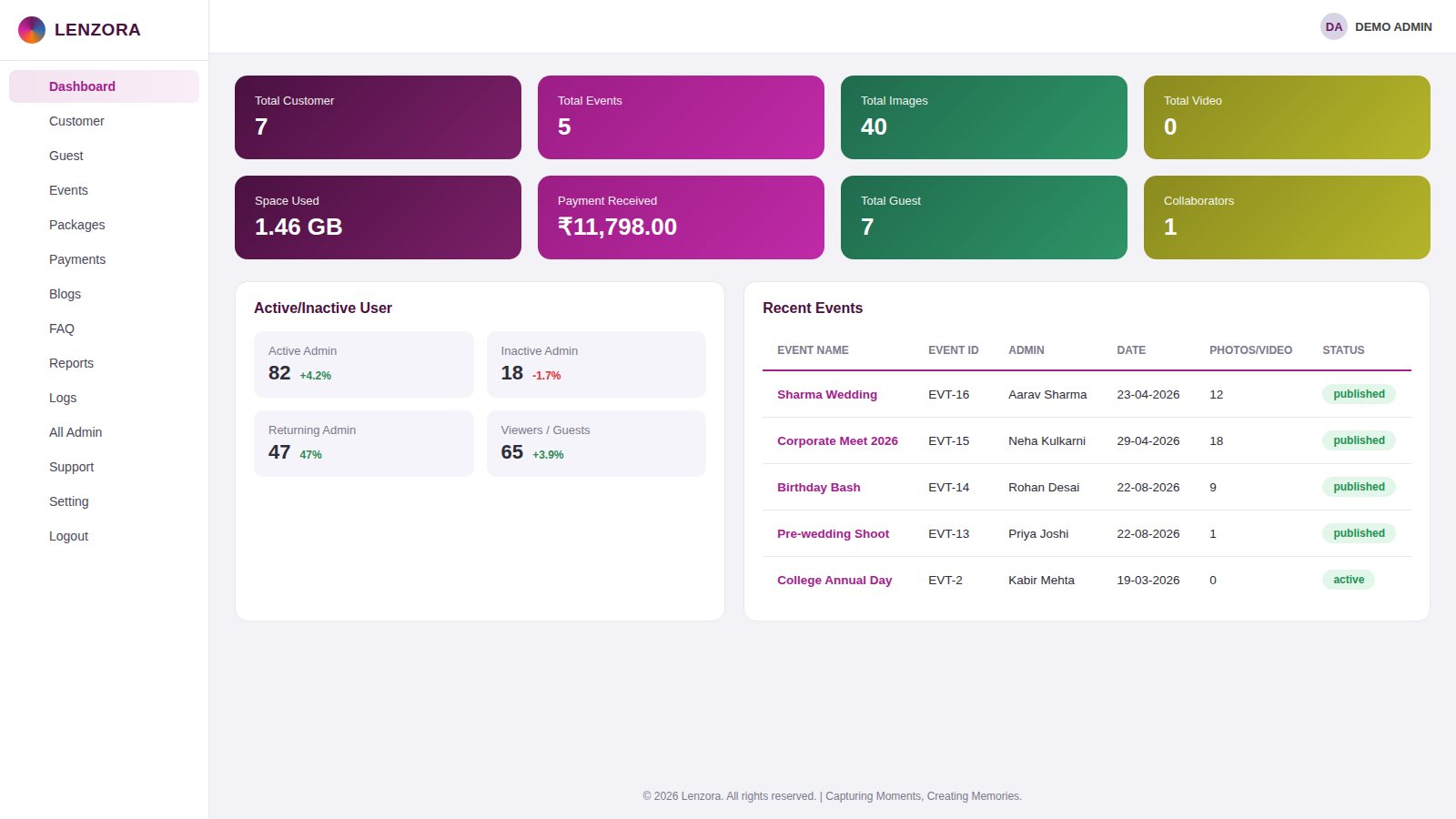
- Cards show total customers, events, images, videos, space used, payment received, guests and collaborators.
- Active / inactive users and uploads / downloads are shown beside the totals.
- Recent Events lists the latest events with code, owner, date, photo count and status.
CustomersAdminPhotographers and studios who use Lenzora, with their current plan.
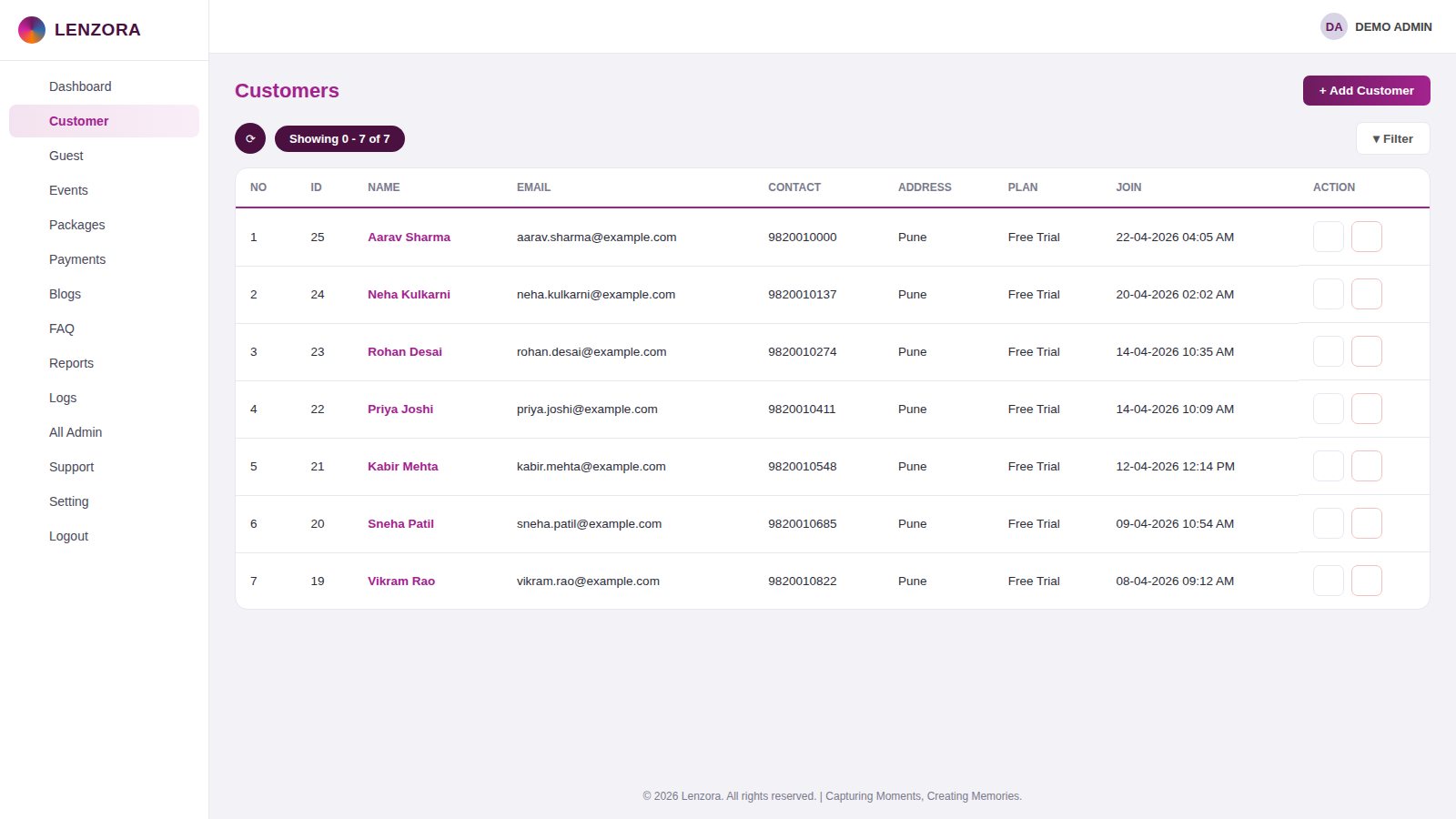
- Add a customer with name, email, contact, address and plan.
- The list shows plan and join date; use the filter to find a customer quickly.
- Edit or delete a customer from the action column.
GuestsAdminPeople who sign up on the event website to find their photos.
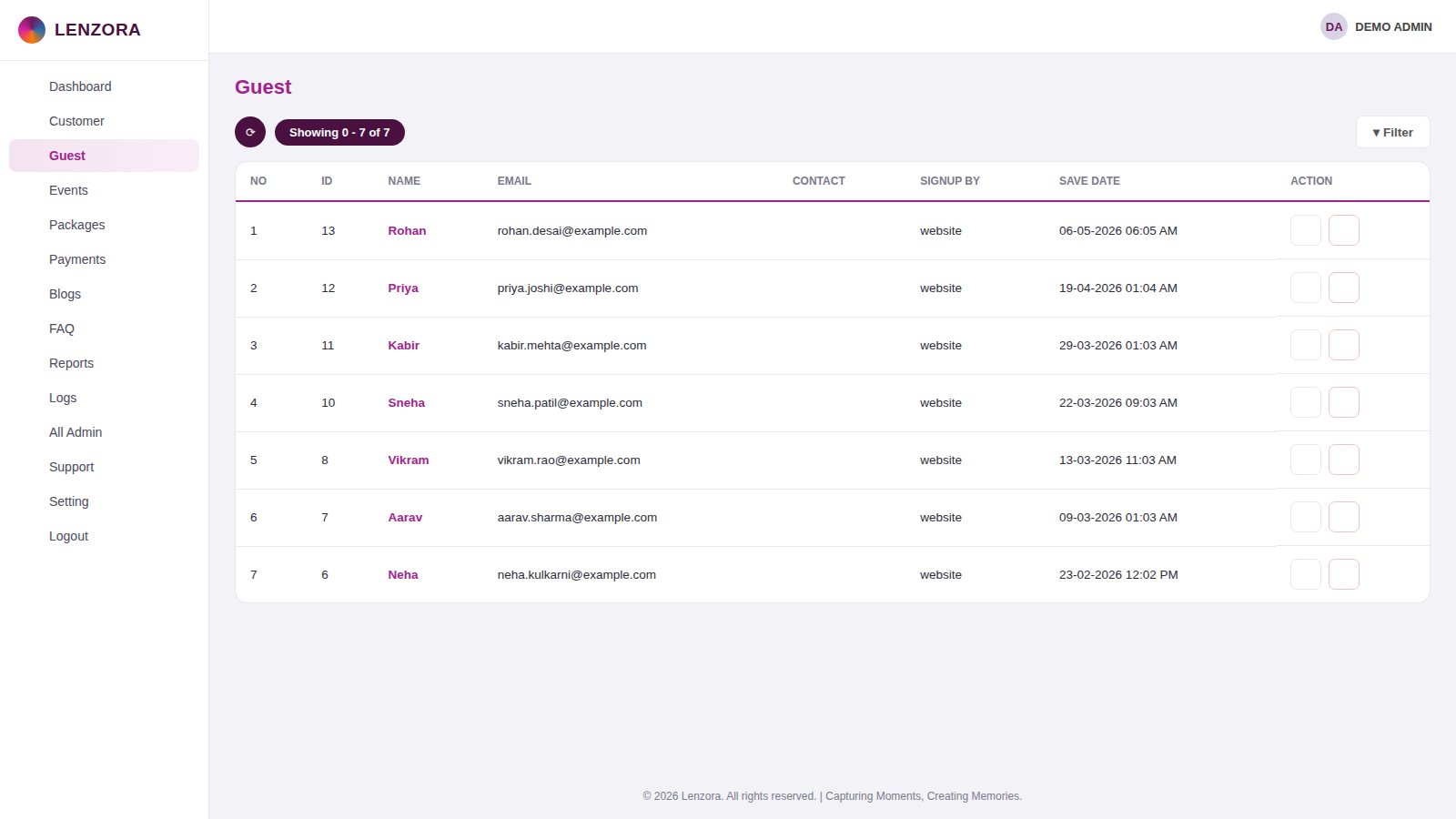
- A guest is added when someone signs up from the website.
- The list shows name, email, contact, sign-up source and date.
- Remove a guest from the action column when needed.
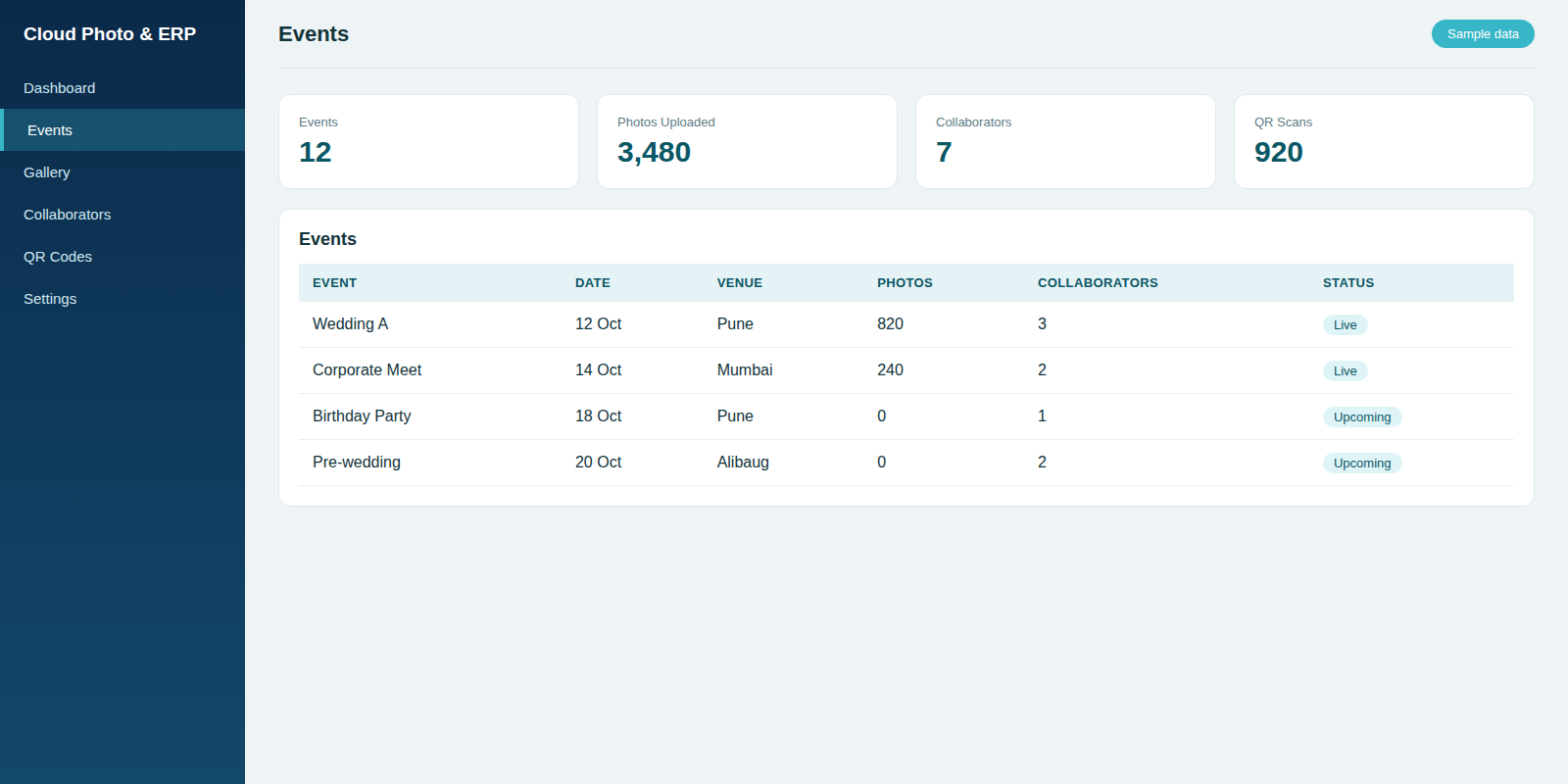
EventsAdminCreate and manage photography events with privacy, expiry and face detection.
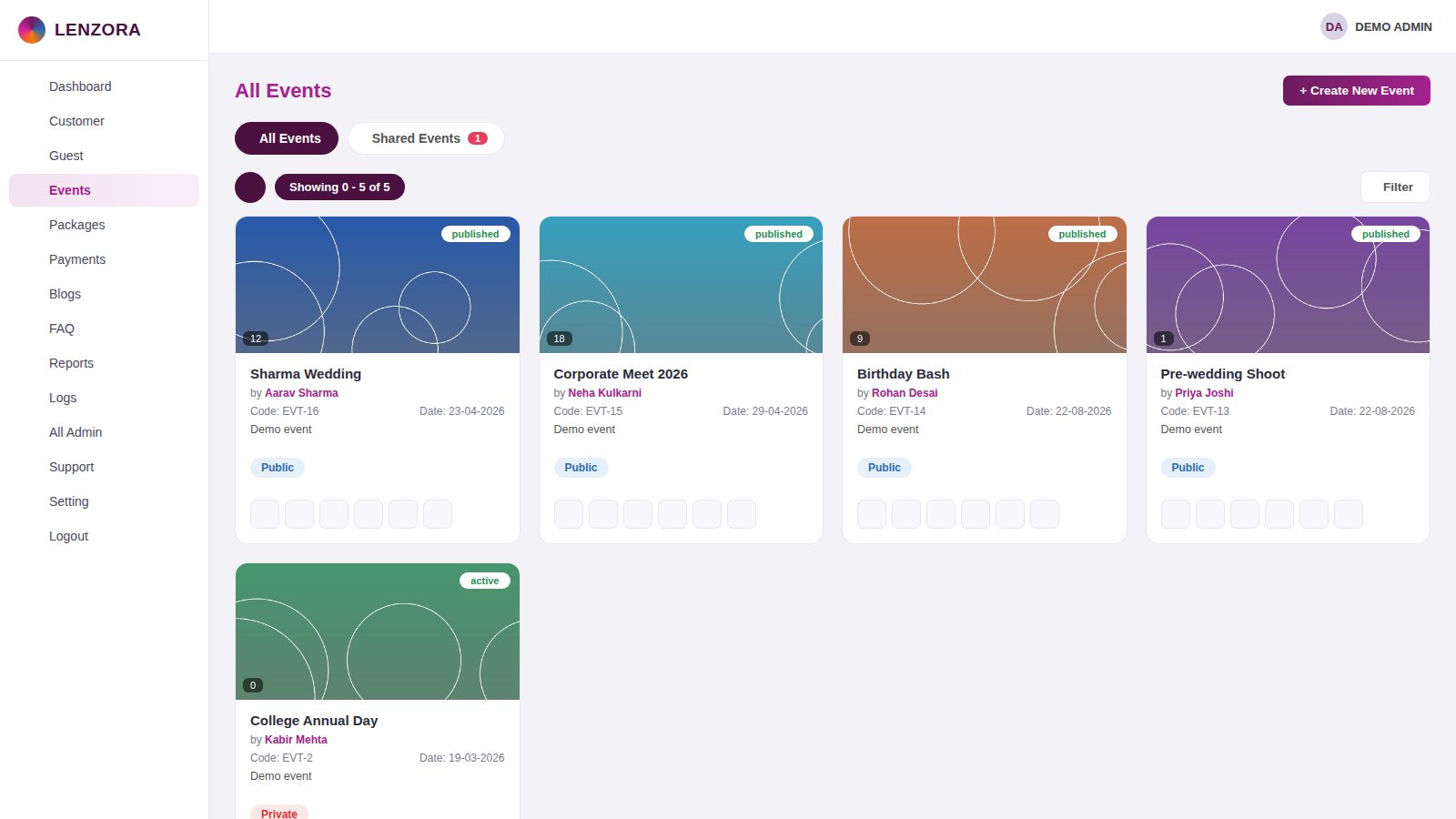
- Create New Event: upload a logo and banner, enter name, date and description.
- Choose Public or Private, set the status and an optional expiry date.
- Switch face detection on or off for the event.
- Event cards show code, owner, date, photo count and status; use Shared Events for events shared with you.
- Open an event to see its photos, videos, collaborators and face-detection status, then edit or delete it.
Event GalleryAdminUpload photos and videos to an event and browse them by date.
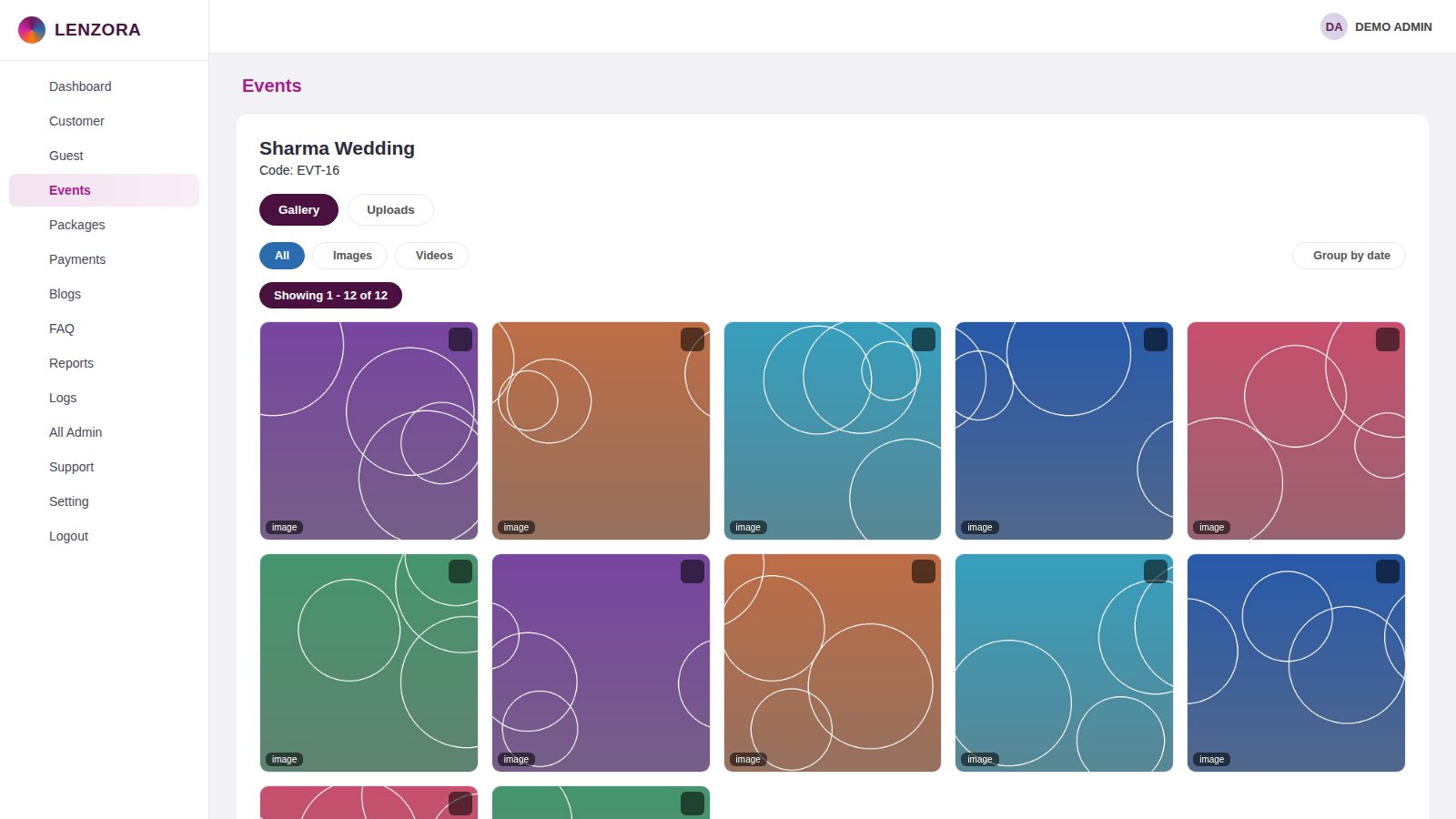
- Open Gallery from the event page.
- Drag and drop images or videos, or choose them from your computer.
- Filter All, Images or Videos and group the gallery by date.
- Delete photos that should not be shown.
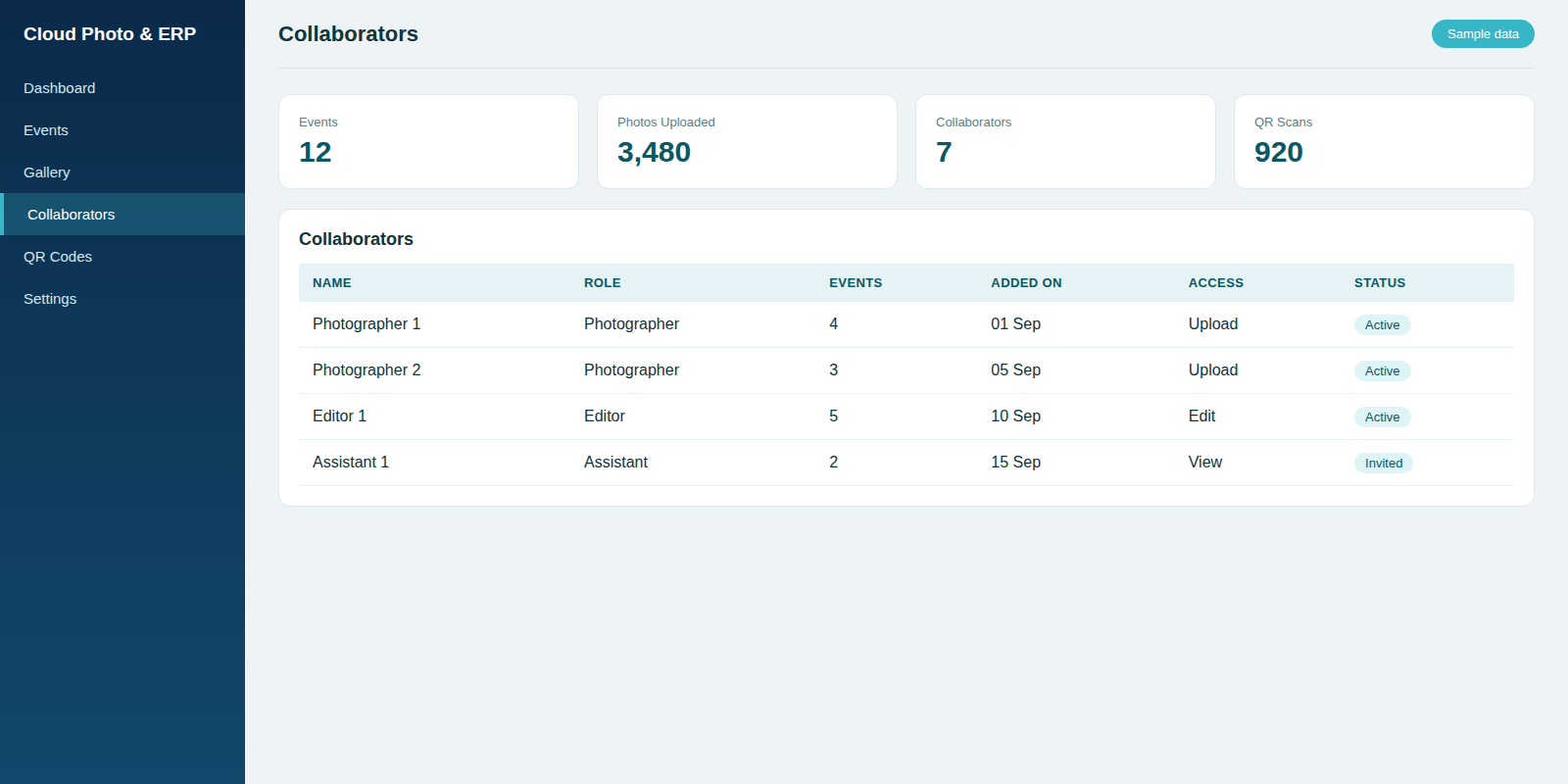
CollaboratorsAdminGive other photographers access to an event.
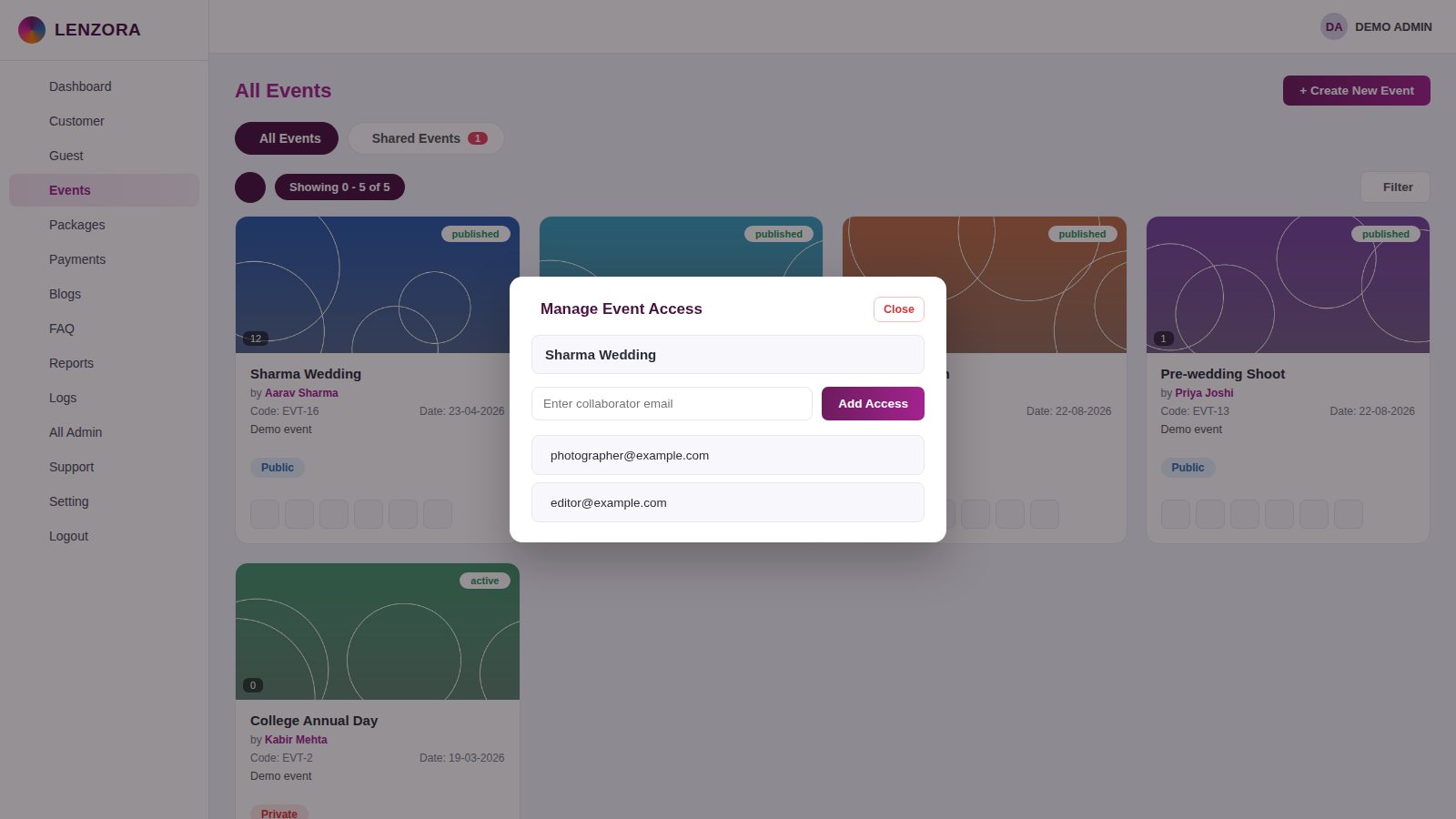
- Click Manage Collaborators on an event card.
- Enter the collaborator's email and click Add Access.
- The collaborator list shows everyone with access; remove access at any time.
- The event shows the total collaborators on its page.
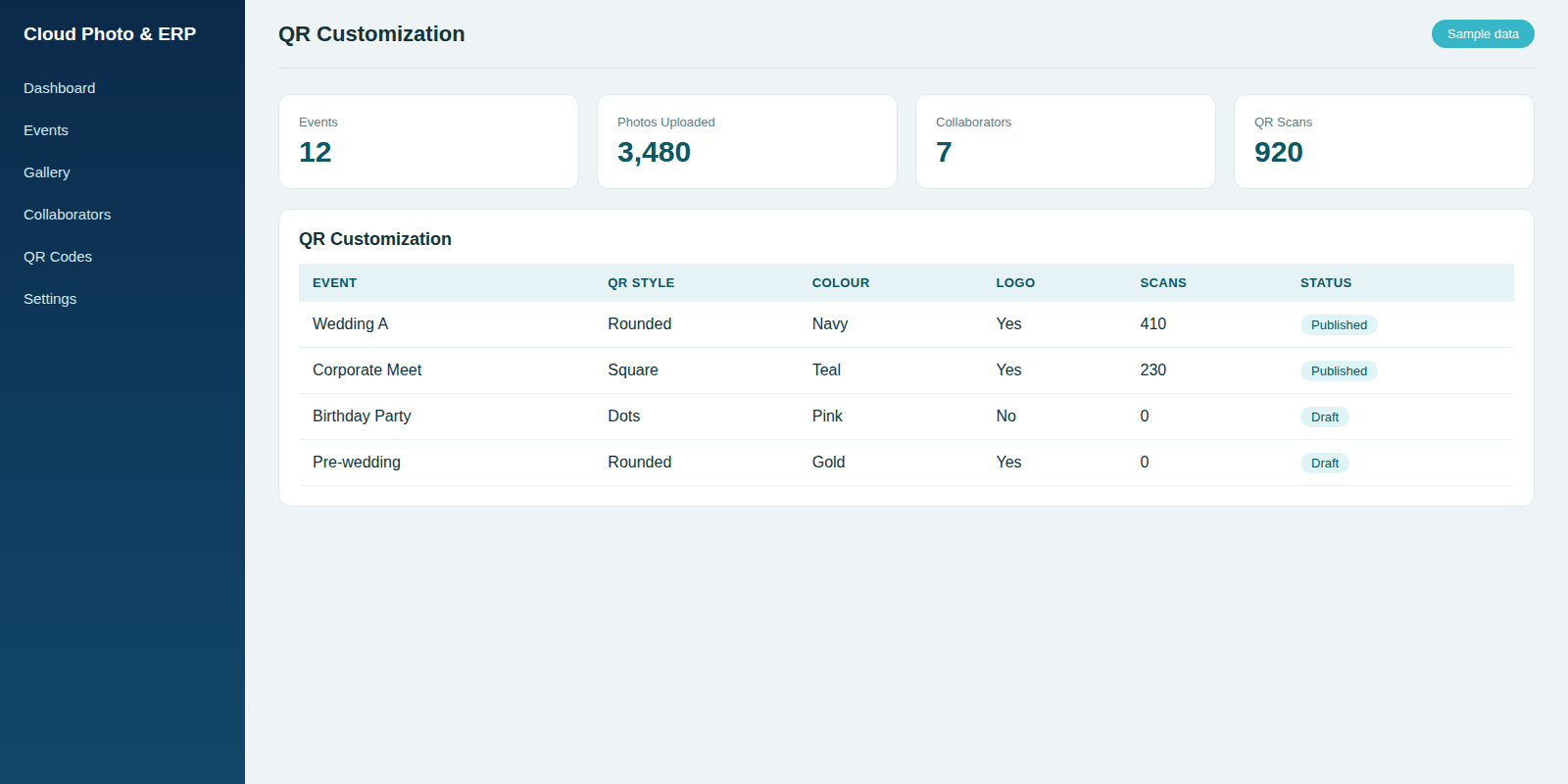
QR CustomizationAdminEach event gets its own QR code that guests scan to open the gallery.
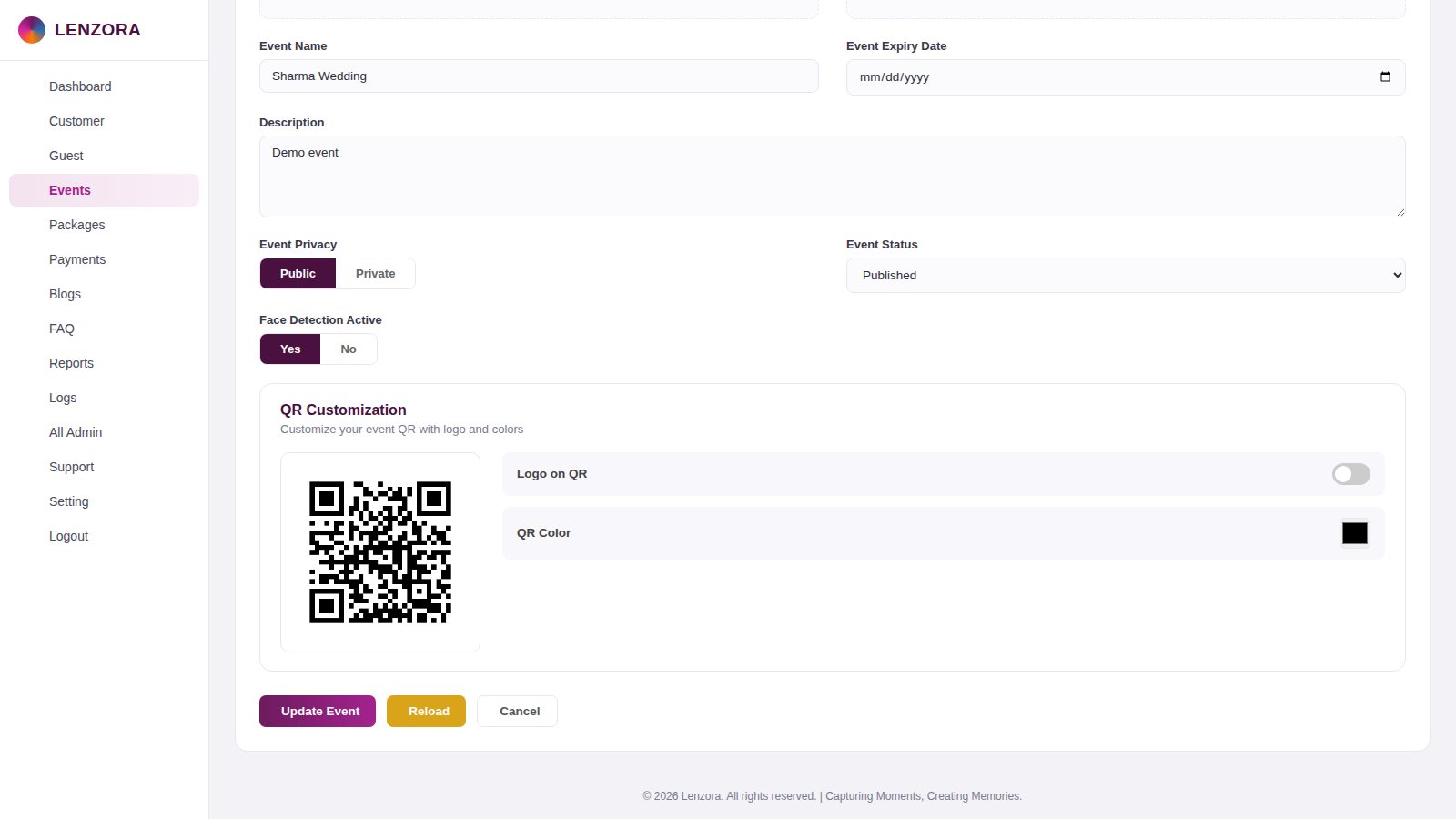
- Open the event and go to QR Customization.
- Switch Logo on QR on or off and pick the QR colour.
- The QR preview updates; Update Event saves it.
- Print the QR or share it so guests can scan and find their photos.
PackagesAdminSubscription plans with monthly, six-month and yearly prices and usage limits.
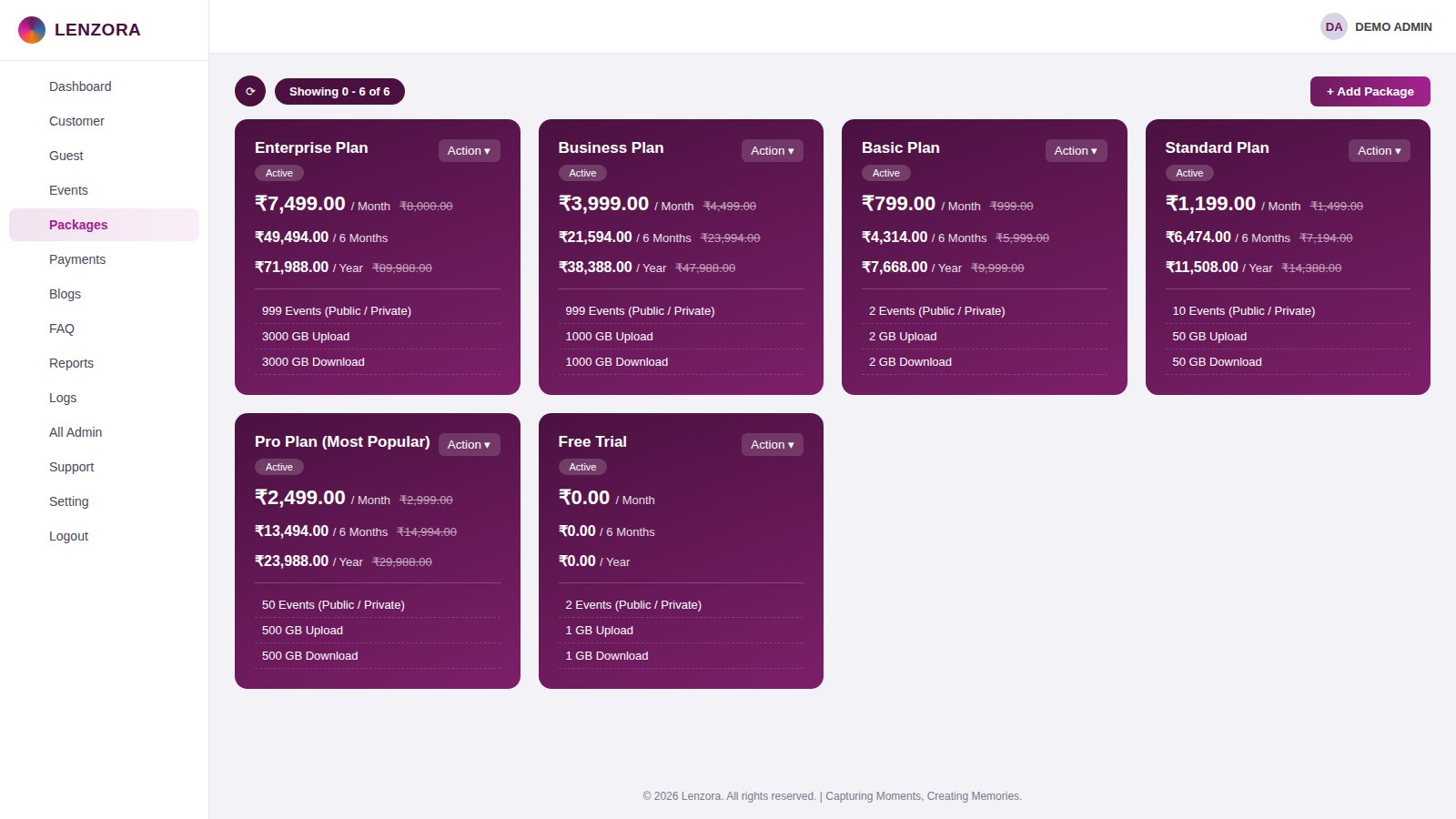
- Create a plan with monthly, six-month and yearly price (and the crossed-out price).
- Set event, upload and download limits for the plan.
- Mark a plan Active or Inactive, and edit or delete it.
PaymentsAdminEvery plan purchase, with order ID, amount, mode and status.
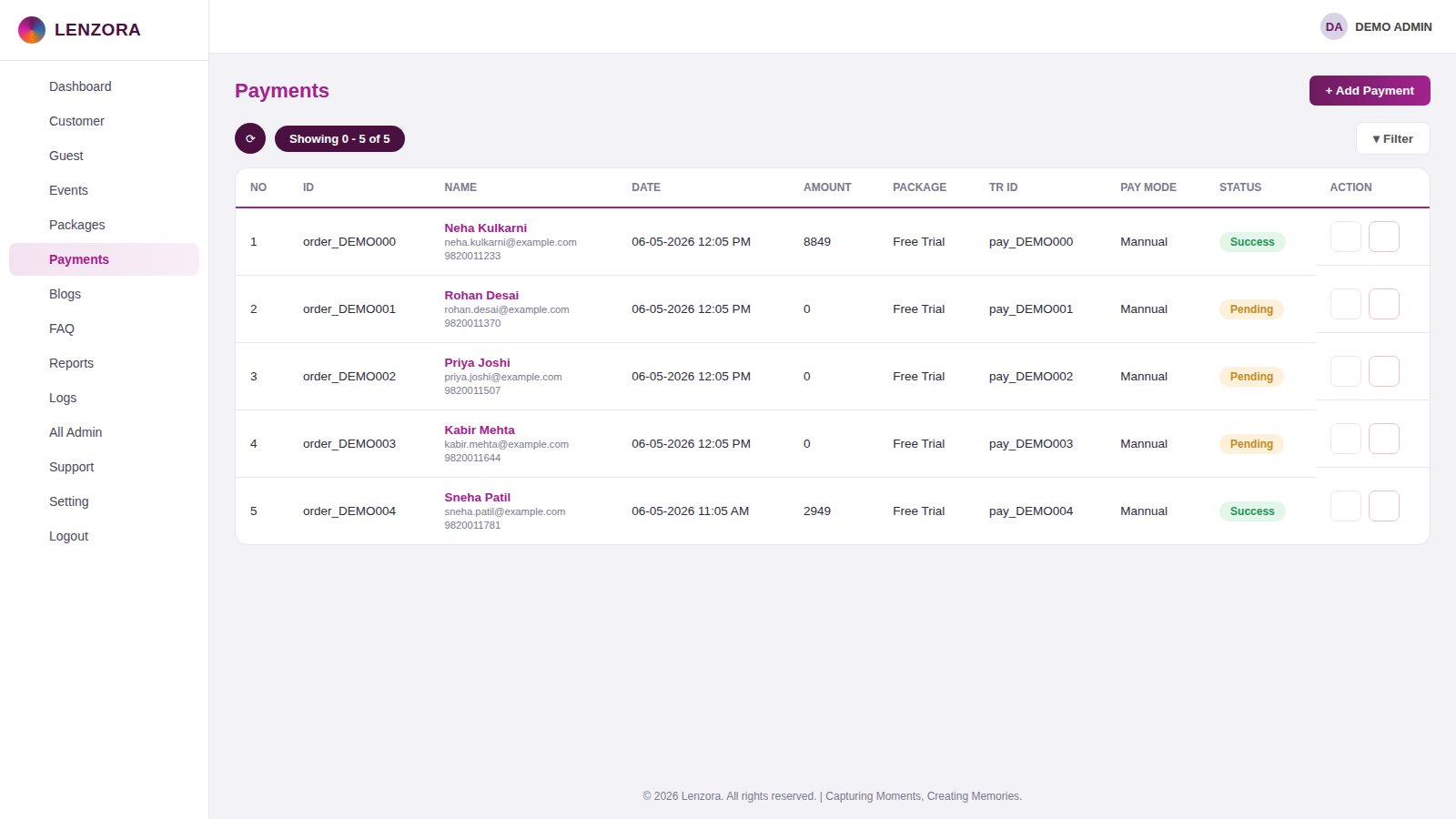
- Online payments appear with order and transaction IDs.
- Add a manual payment for offline or bank payments.
- Status shows Success or Pending; edit or delete an entry when needed.
ReportsAdminRevenue by month, customers by plan and package performance.
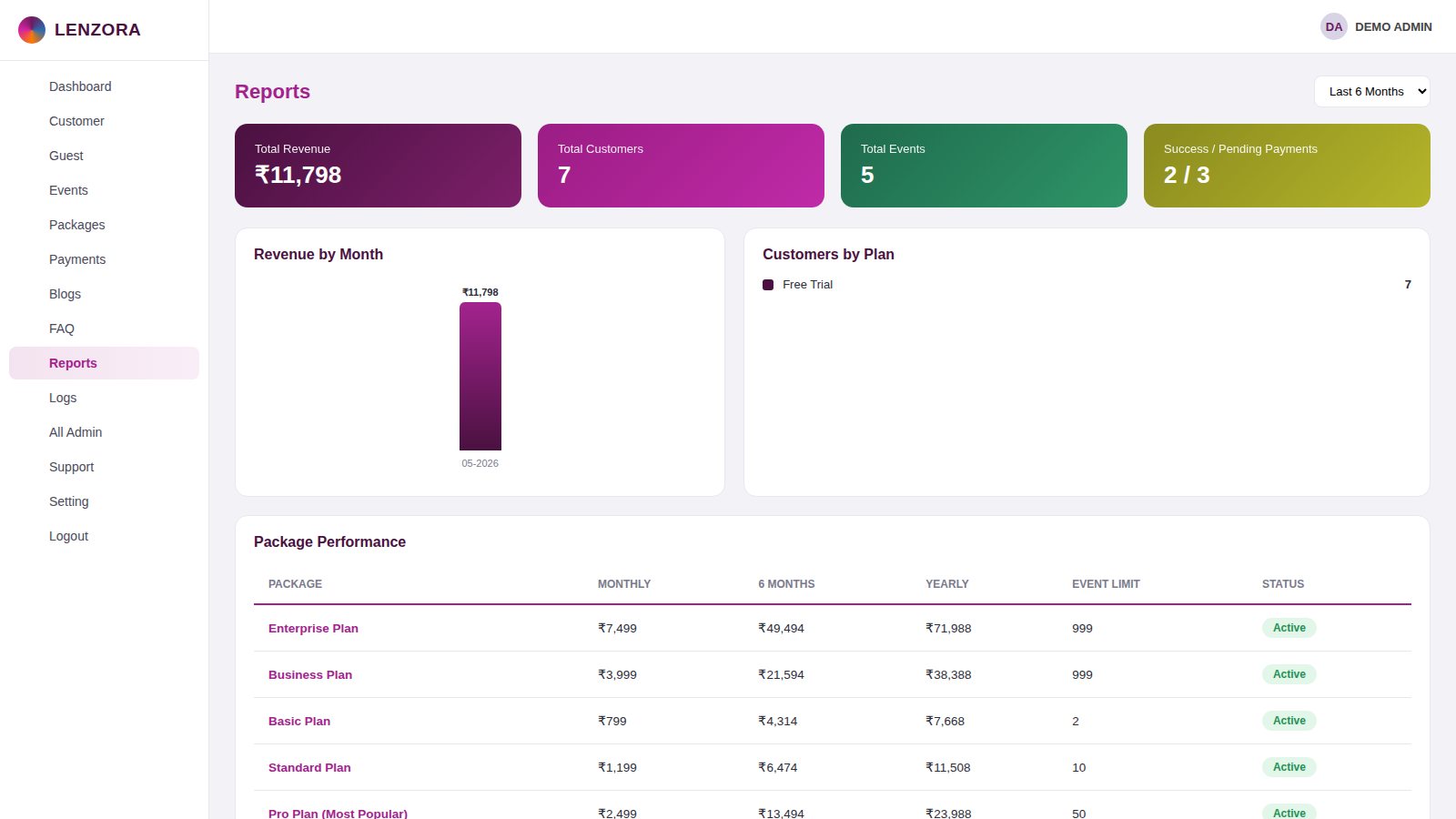
- Pick a period at the top (for example last 12 months).
- Revenue by Month and Customers by Plan charts update with the period.
- Package Performance lists price, limits and status for each plan.
Activity LogsAdminRecord of guest face searches with location and matching images.
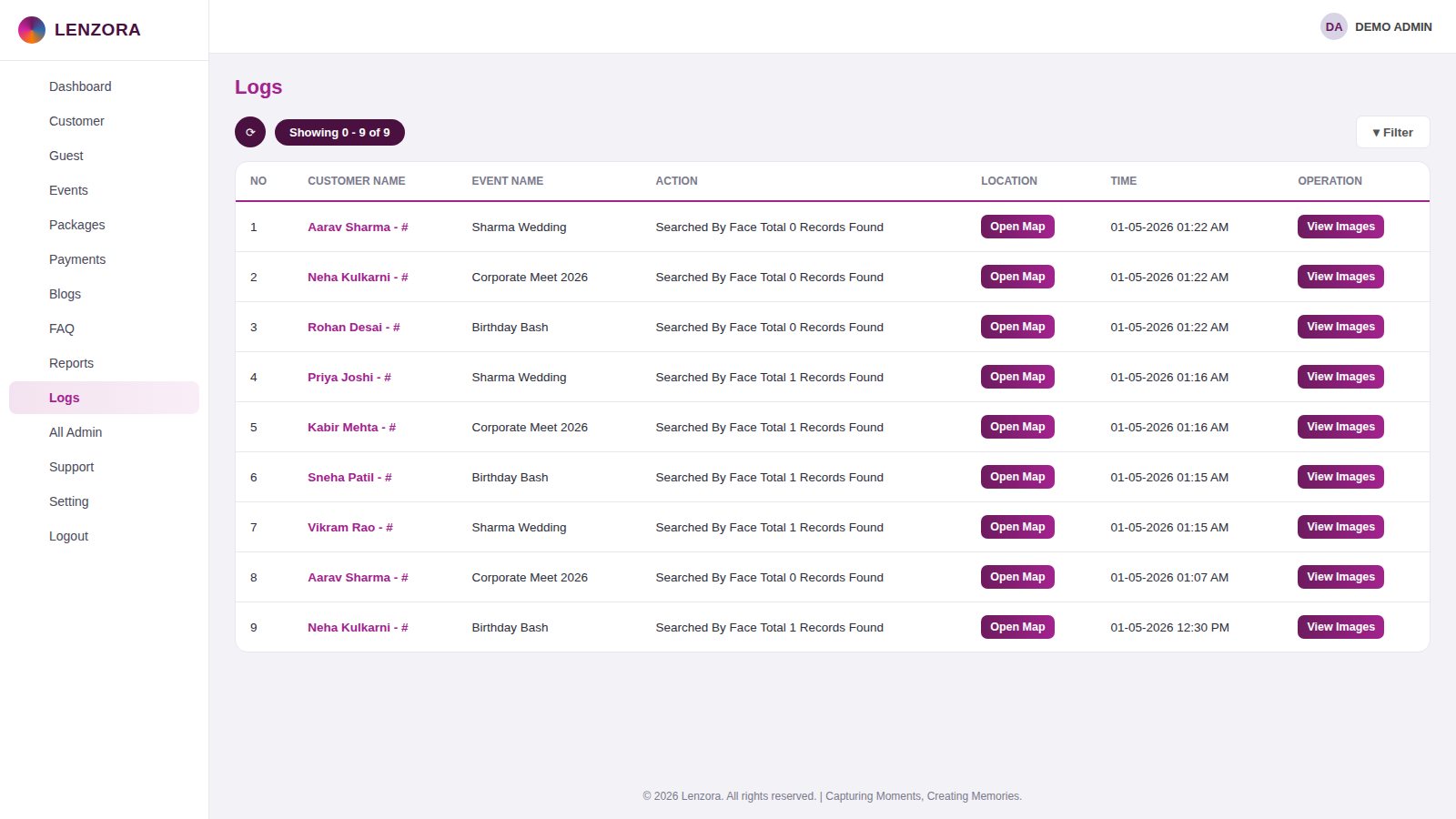
- Each time a guest searches by face, a log entry is saved.
- The entry shows guest, event, result count, location and time.
- Open Map shows where the search was made and View Images shows the matches.
Blogs & FAQAdminPublish blog articles and FAQ answers shown on the website.
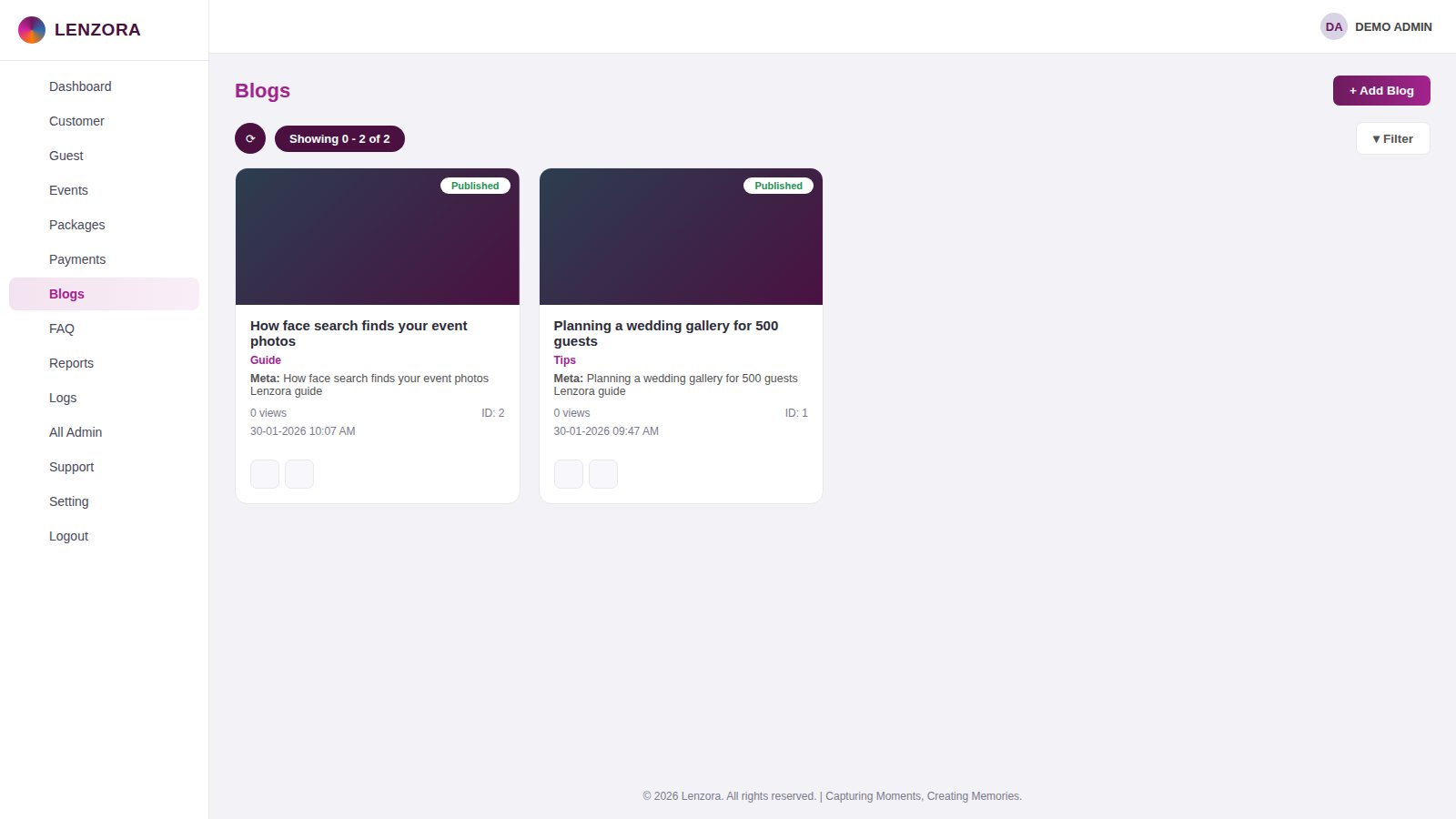
- Write a blog with title, category, meta details and a rich-text description, plus an image.
- Set the blog to Published or Draft.
- Add FAQ questions and answers and mark them Active or Inactive.
Support TicketsAdminCustomer support requests with status and attached image.
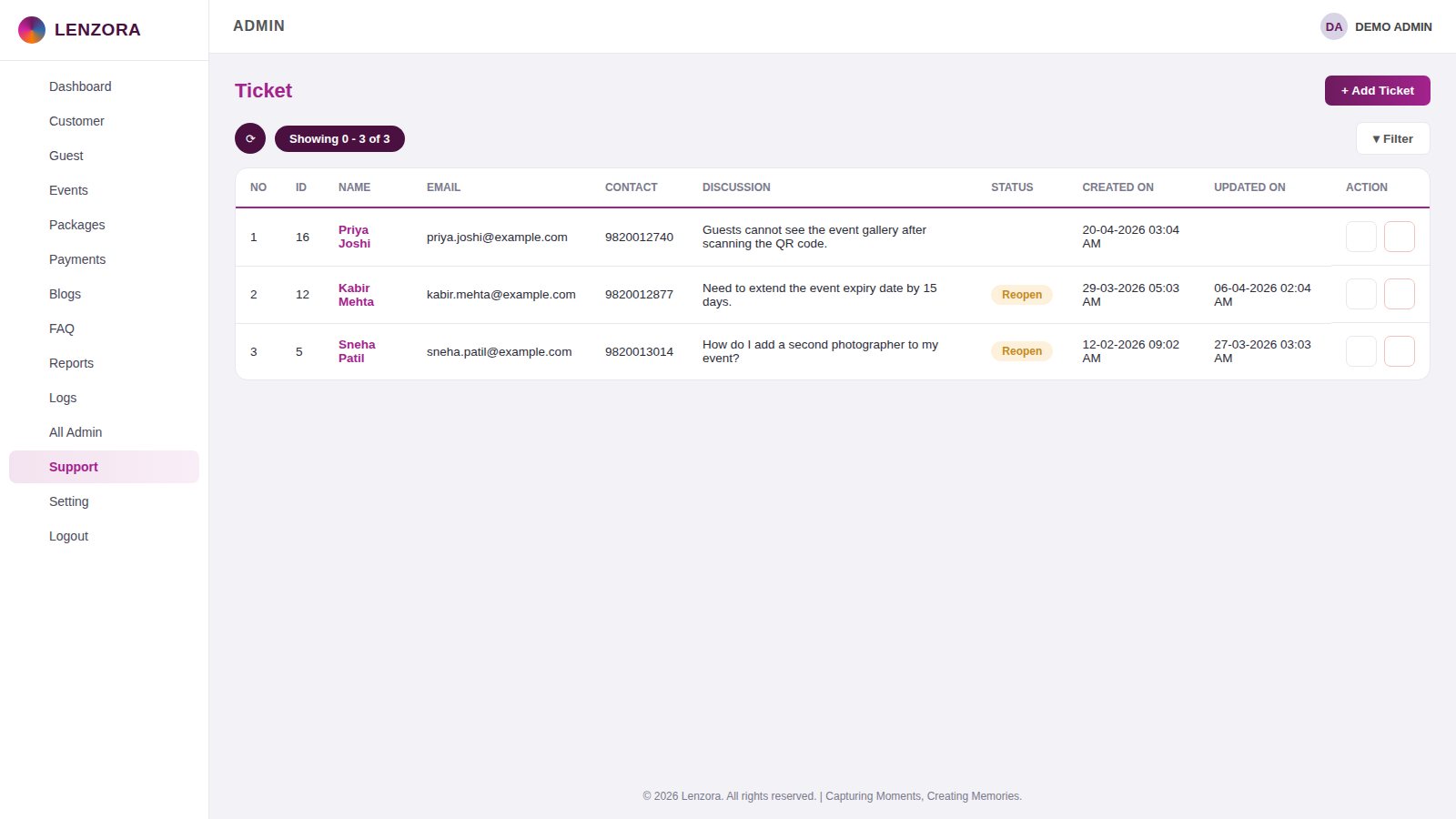
- Add or review a ticket with name, contact and the problem described.
- Attach an image of the issue.
- Update the status as you work on it; the updated date is recorded.
All Admin & RolesSuper adminCreate admins and decide exactly what each one can do.
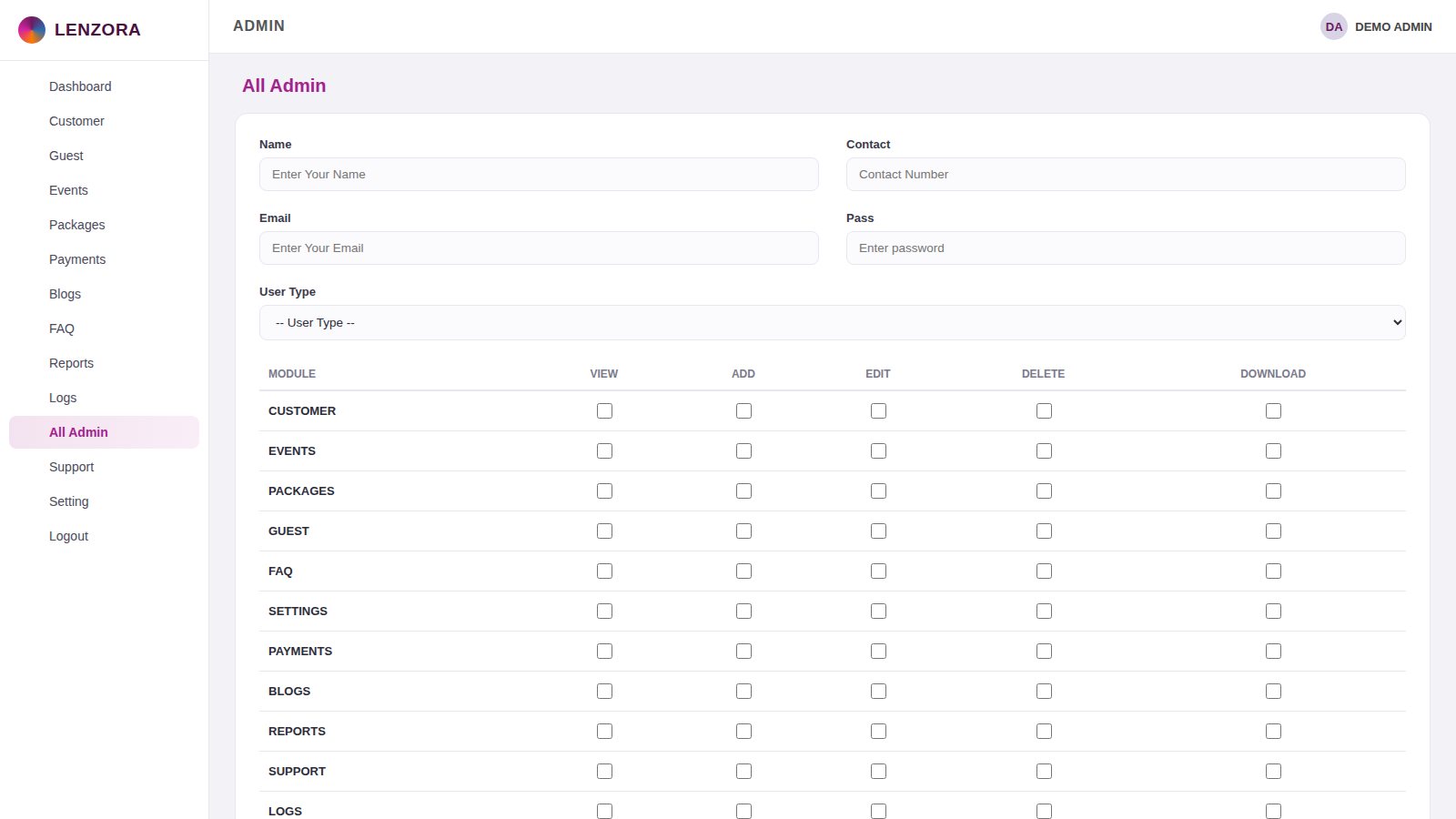
- Add an admin with name, email, password and user type.
- A permission matrix lets you tick View, Add, Edit, Delete and Download for each module.
- Admins only see the modules they have been given.
SettingsSuper adminMail, support contact and invoice details in one place.
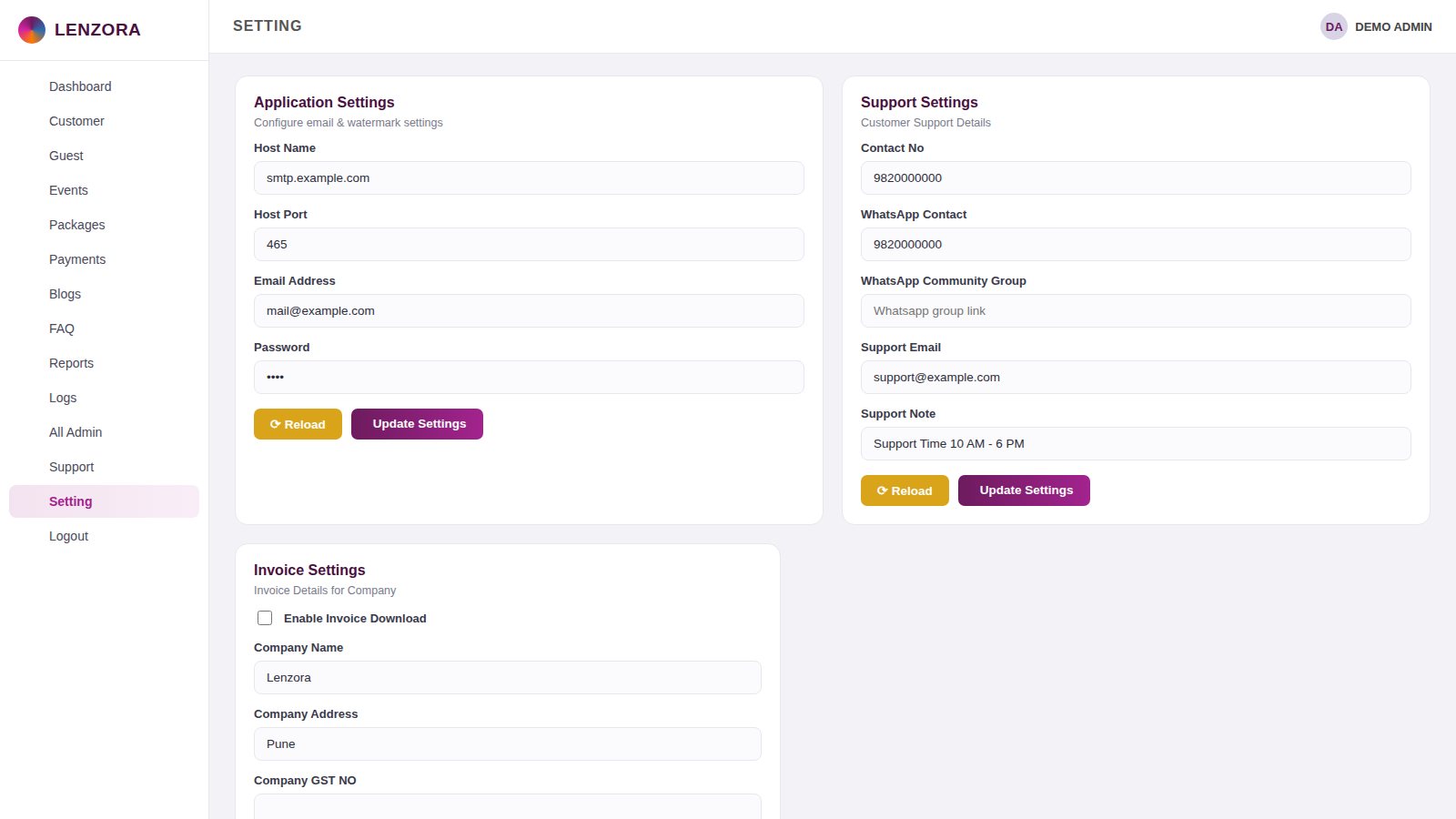
- Application Settings: mail host, port, email and password used to send emails.
- Support Settings: contact number, WhatsApp number or group, support email and support timing.
- Invoice Settings: company name and address, and whether customers can download an invoice.
Workflow
How It Works
One connected flow, from start to final report.
1
Create event
2
Set QR & privacy
3
Add collaborators
4
Upload photos
5
Guests scan QR
6
Find by face
7
Track in logs
8
Plans & payments
Screens
ERP Demo Screens
Click a screen to view it full size. Screens show sample data.
Need a similar ERP for your business?
Tell us about your process — we will build the system around it.